Boost Free Fire Performance on Android: 2026 Ultimate Guide
Free Fire is made to run on a lot of Android phones, but that does not mean every match will feel smooth. Sometimes the game stutters, your ping jumps, or the phone gets hot right when the fight starts.
The good news is that most of the time, you do not need a new phone. A few small changes can boost Free Fire performance on Android and make a big difference.In this guide, we’ll cover easy, proven tips—no confusing tech talk, no fake booster apps. Whether you’re playing the regular game or testing updates on Astute Beta Server, follow Garena’s advice: check your device, lower graphics, clear cache, update your phone, close background apps, and restart when needed. Boost Free Fire performance on Android in 2026 with proven tips to reduce lag, improve FPS, fix ping issues, and keep your device cool for smooth gameplay.
Types of Lag in Free Fire: Know What You Need to Fix
Before you try any fix, it helps to know what kind of lag you are dealing with. Many players say “Free Fire is lagging,” but the real issue can be different from one phone to another.
Frame Lag or FPS Drops
Network Lag or High Ping
Heating Lag
When you know the type of lag, you can apply the right fix faster. That saves time and gives better results.
Optimize Graphics Settings for Smooth Gameplay
If you want the fastest way to boost Free Fire performance on Android, start with the graphics settings. For most players, this is the easiest and most effective fix. High graphics may look nice, but they can make the game lag on low-end or mid-range phones. Smooth gameplay is always better than heavy visuals, especially in close fights.
Best Graphics Settings for Better Performance
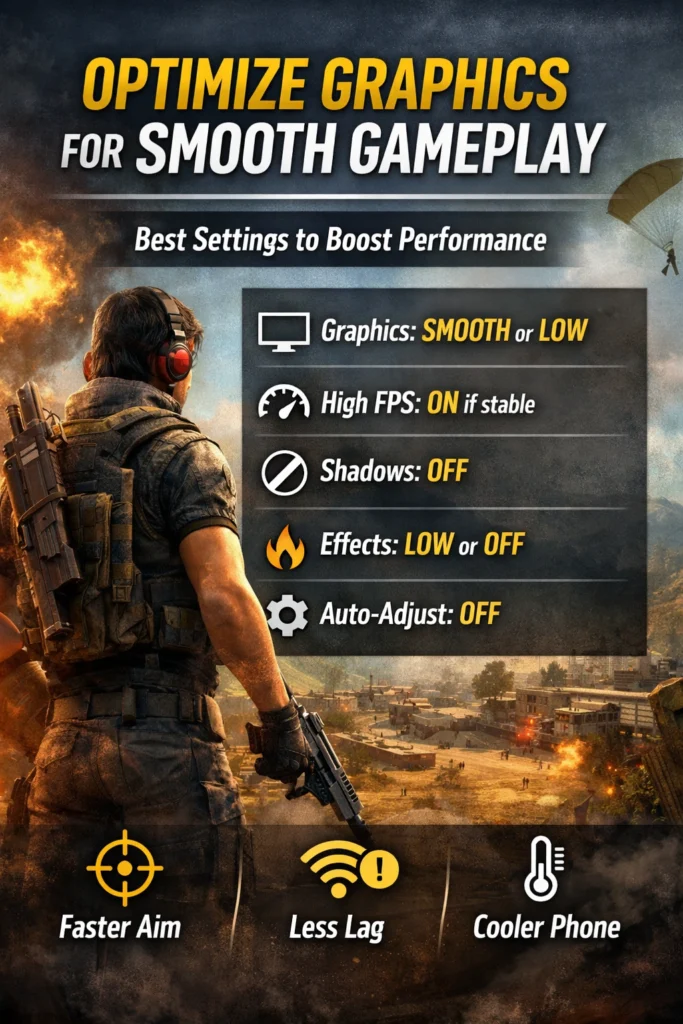
Use these settings if your phone is lagging:
Graphics: Smooth or Low
High FPS: On only if your phone stays stable
Shadows: Off
Effects: Low or Off
Auto-adjust graphics: Off, then test manually
These settings reduce the load on your phone and help the game run more smoothly.
Why Lower Graphics Helps
Free Fire relies on your phone’s CPU, RAM, and GPU working together. High graphics overload your device, causing slower response, heating, and frame drops. Lowering graphics frees up resources, giving you:
If your goal is better aim, faster movement, and fewer stutters, lower graphics is usually the right move.
First, know what kind of lag you have
Not all lag is the same. If your game feels choppy, freezes, or drops frames, that is usually a performance problem. If your character moves late, shots feel delayed, or you get red ping, that is usually a network problem. If the game starts smooth and gets worse after a few matches, that is often heat.
This matters because the fix is different for each one. Many competitor articles mix everything together, but it is easier to solve the issue when you know what is really going wrong.
Make sure your phone is not below the safe range
Free Fire can run on Android 4.4 with a dual-core 1.2GHz CPU, 1GB RAM, and 1.5GB+ storage, but Garena says that is only the minimum to make the game work. For good performance, Garena recommends Android 7, an octa-core 1.8GHz CPU, 3GB RAM, and 3GB+ storage.
That means:
1GB RAM phones: the game may open, but smooth play is hard
2GB RAM phones: playable in many cases, but expect compromises
3GB RAM or more: much better chance of stable gameplay
If your phone is under the recommended level, do not chase ultra graphics. Aim for a stable, smooth match instead.
Close background apps before opening Free Fire
Background apps can eat up your phone’s RAM and processing power, making Free Fire lag. To boost Free Fire performance on Android, Garena recommends closing games or apps running in the background. This tip is especially important for low-end devices, as Techlusive also points out.
Before you start a match:
This takes less than a minute and often helps more than people expect.
Clear cache and remove junk you do not need
Garena recommends clearing your phone’s temp cache and removing saved data from apps and games you do not need. That is one of the easiest ways to free up space and reduce background clutter.
Try this:
A full phone usually feels slower. A cleaner phone usually feels lighter.
Update Android and the game
Garena also recommends keeping Android updated. Updates can fix bugs, improve app behavior, and help with general stability.
Check for:
Do not ignore this step. Sometimes the problem is not your settings at all. It is just outdated software.
Turn off battery-saving limits while gaming
Garena suggests checking whether your apps and games are optimized for battery usage and performance. In real use, aggressive battery saving can hold games back, especially on phones that try hard to save power in the background.
Here is the simple move:
Turn off Battery Saver before playing
If your phone has a per-app battery option, let Free Fire run without extra limits while gaming
Use your phone’s built-in gaming or performance mode if it has one
Android’s Game Mode support exists on selected Android 12 devices and Android 13+ devices, and it is designed around performance or battery priorities depending on the mode and device. If your phone has Game Mode, Gaming Mode, or Boost Free Fire Performance on Android, use it.
Fix network lag the smart way
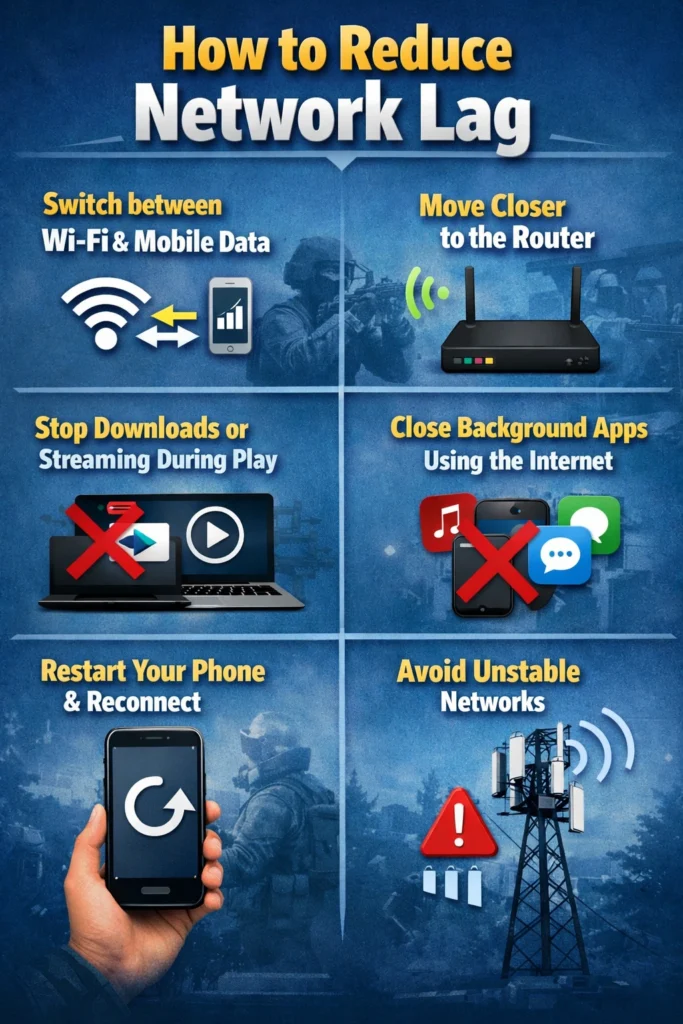
If your FPS is fine but your ping is bad, the issue is usually your connection. Garena says unstable connection can cause lag, matchmaking errors, and random disconnects. It also recommends making sure no other app is running during play and switching between Wi-Fi and mobile data to see which one works better.
Easy ping fixes
Restart your phone
Switch from Wi-Fi to mobile data, or the other way around
Stop downloads and streaming on the same network
Stay close to the router if you are on Wi-Fi
Do not use mods or random third-party tools
Garena warns against MODs and third-party apps, as most lag-fix apps are just placebo. Stick to safe steps to boost Free Fire performance on Android.
Keep your phone cool
Heat is a silent Boost Free Fire Performance on Android killer. Many recent competitor guides stress thermal control because phones often slow themselves down when they get too hot. Once that happens, Free Fire starts to feel heavy even if it was smooth at first.
Simple ways to reduce heat
Take off a thick phone case while playing
Do not play under direct sunlight
Lower screen brightness a little
Take a short break after long sessions
Avoid charging while playing if your phone heats up fast
You do not need to overthink it. Cooler phone = steadier performance.
Fix Ping & Network Lag
Not all lag comes from your phone. If the game looks smooth but your actions feel delayed, your network is likely the culprit. Many players mistakenly lower graphics when the real issue is the connection.
Signs of Network Lag:
Enemies teleport or jump
Shots register late
High ping or sudden delays
Slow movement despite smooth graphics
How to Reduce Network Lag:
Skip fake “booster” apps
This deserves its own section because a lot of players still waste time on it. Garena says many Play Store apps that claim to fix lag or increase or Boost Free Fire Performance on Android are mainly placebo and provide little help. So instead of installing three random booster apps, do this:
That is the real shortcut.
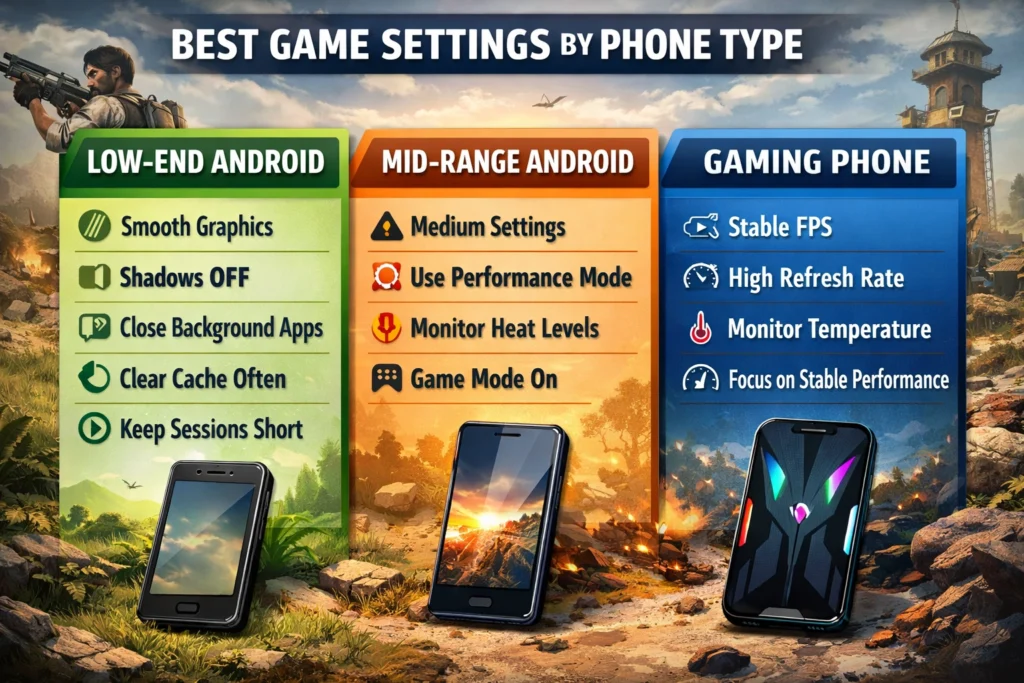
Best setup by phone type
Use smooth graphics, turn off shadows, close every background app, clear cache often, and keep sessions short to avoid heat. This matches both Garena’s support advice and what newer competitor guides recommend for weaker devices.
You can test medium settings, but do not keep everything maxed out. Turn on performance mode if your phone offers it and watch for heat after 2–3 matches. Android’s Game Mode support can help on supported devices.
Focus less on “boosting” and more on keeping the performance stable. Stable FPS and low heat matter more than pushing every setting to the max. Recent Android gaming guides focus on refresh rate, performance mode, and temperature control for exactly this reason.
A quick 5-minute Free Fire boost routine
Do this before you play:
Simple routine. Better results.
FAQ About Boost Free Fire Performance on Android
Final thoughts:
If Free Fire is lagging on Android, don’t rely on hacks. Start with simple steps that actually work to boost Free Fire performance on Android. Check if your phone meets Garena’s recommended specs. Lower graphics, close background apps, clear cache, and use performance mode if your phone supports it. Fix your internet, keep your phone cool, and avoid fake booster apps.
That is the cleanest way to get smoother gameplay in 2026.